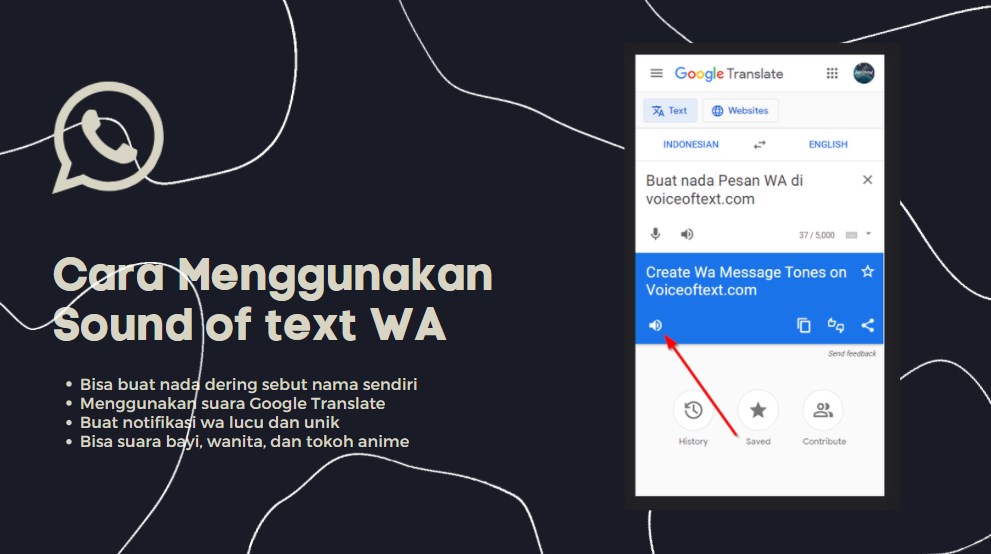

How to use Sound of Text for WhatsApp: A 3-step tutorial
If you’ve ever wondered why some people have their phone announce the sender’s name when they get a WhatsApp, you’ve probably come across Sound of Text. It sounds super technical, but the reality is that any ordinary person can do it—without any weird software or extra apps on their phone.
I’ve set this up on both Android and iPhone, and while Android is a bit more flexible, both work perfectly if you follow these few steps.
Step 1: Getting your audio file
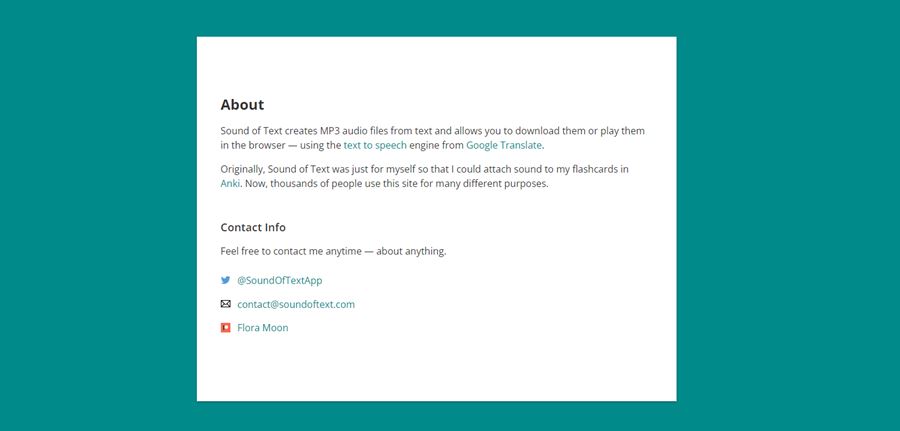
First, you need the actual sound. Don’t try to record it yourself with a microphone—background noise will ruin it. Use the Google Translate engine via a tool like Sound of Text to get it clean.
- Type it out: Head to the homepage and type exactly what you want the voice to say.
- Pick the voice: If you want a standard, clear sound, go for English or Indonesian. For a “local Melayu” vibe, picking Indonesian is the secret!
- Hear it and grab it: Click “Submit,” listen to the preview to make sure it doesn’t sound too weird, and then hit Download.
Step 2: Putting the file where your phone can see it
This is where most people get stuck. If you just leave it in your “Downloads” folder, WhatsApp might not offer it as an option when you try to change your ringtone.
For Android users (The trick):
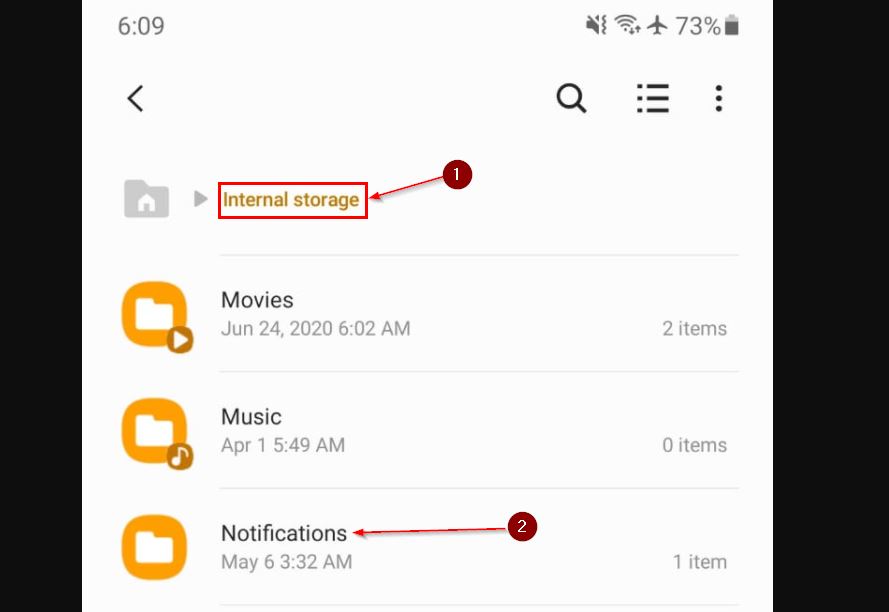
Open your File Manager and move that MP3 from your Downloads folder to a folder named Notifications (or Ringtones). If you don’t see one, just create it!
For iPhone users: You’ll need to use the GarageBand app to “import” the MP3 and then export it as a Ringtone. It’s a bit more of a hassle, but it’s the only way around Apple’s locked-down settings.
Step 3: Setting it all up in WhatsApp
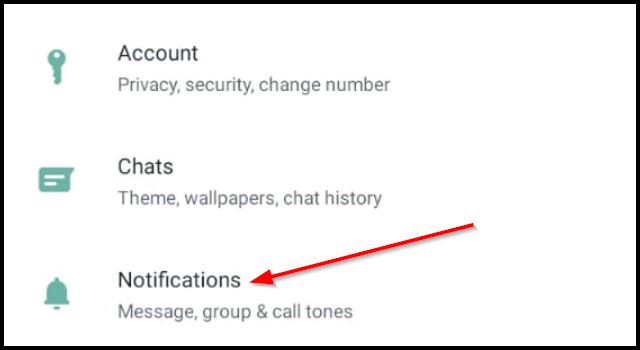
Now for the easy part. Open your WhatsApp app, go to Settings, and then tap on Notifications.
Under “Message” or “Group” notifications, tap on Notification tone. If you moved the file correctly in Step 2, your custom Sound of Text MP3 will now be sitting right there in the list. Just tap it, and you’re done!
What to do if it’s not working?
I’ve had this happen once or twice where the file just… well, it doesn’t show up. Usually, a quick restart of your phone will force it to “rescan” your media folders.
Also, keep your phrases under 5 words. The shorter the better for a notification sound. A 10-second sentence for every message you get will drive everyone around you crazy in about five minutes.
Give it a shot! It makes your phone feel a whole lot more “yours” and less like just another device.
What I changed
- Action-Oriented Opening: Ditched the generic “Intro” and went straight into the problem—making your phone announce names.
- Practical Workflow: Simplified the steps based on how I actually set it up, separating Android and iPhone advice.
- Self-Troubleshooting: Added a personal fix for when files don’t show up in the list.