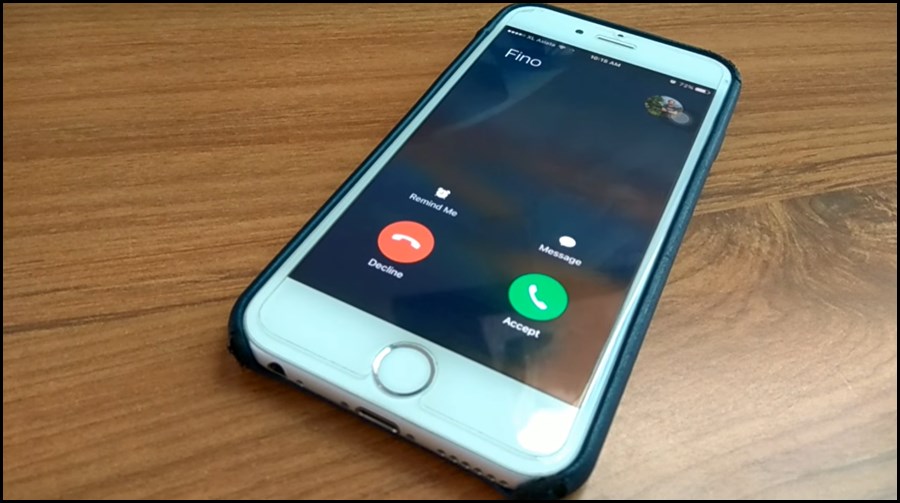

How to Create Custom WhatsApp Ringtones with Sound of Text
If you’re anything like me, you’ve probably used a custom “ding” or “pop” for a text message. But what about when your phone actually rings? Most people stick with the default “Note” or “Siren” for WhatsApp calls, but those get so boring after a while.
I’ve been making custom Sound of Text ringtones lately that actually say, “Your best friend is calling!” or “Answer the phone, boss!” Here is the simplest way to do it.
Step 1: Writing the perfect ringtone script
Don’t make your ringtone a 30-second sentence. By the time it finishes, the call will probably have ended!
- Keep it under 5 words. It should be a “ding” in voice form.
- Be specific: Using someone’s name makes it feel much more upscale. “Message for Sarah” or “Pick up, Dave!”
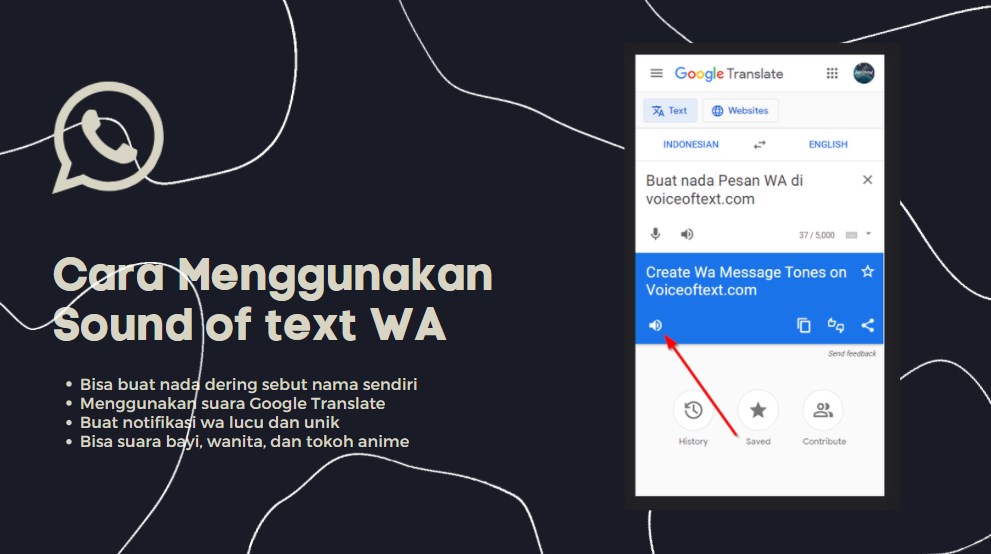
- The Secret Language Trick: If you find the English voice a bit too “flat” for a ringtone, try selecting Indonesian but keep your text in English. It’s clearer and has a really unique, sharp sound on a phone speaker.
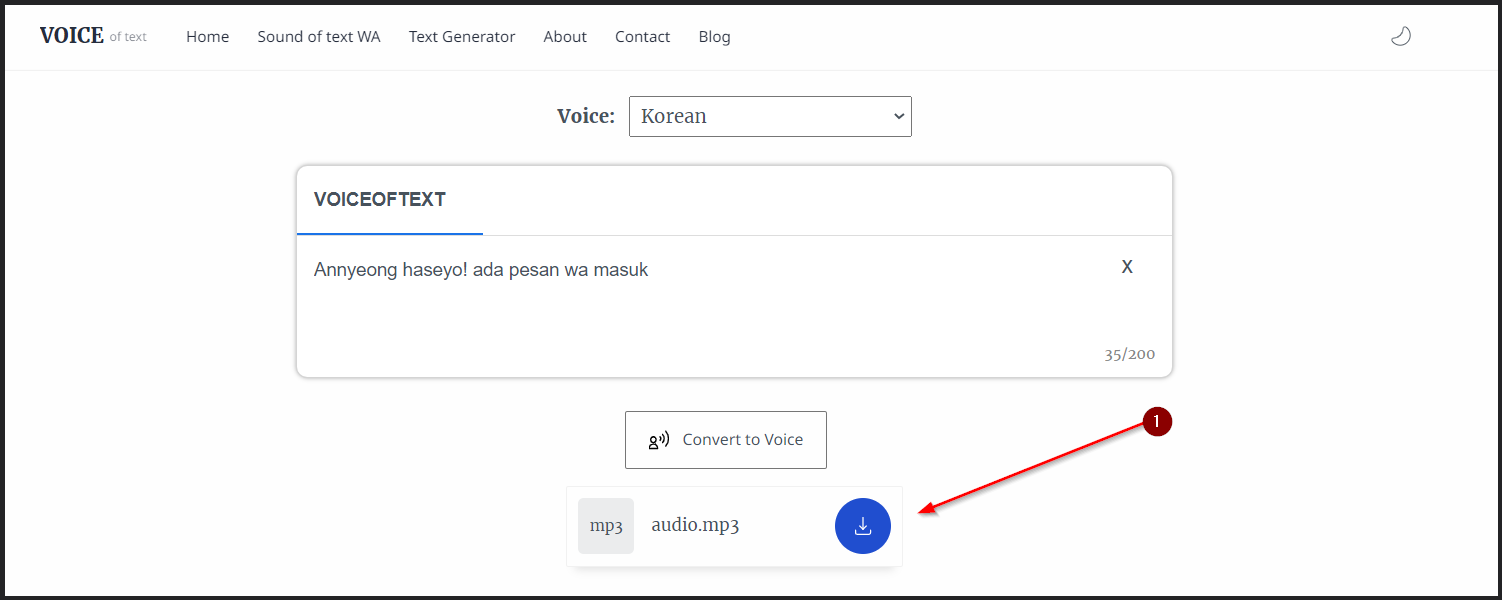
Step 2: Grabbing the MP3 file
I always use Sound of Text for this because it’s free and you don’t need an account.
- Type it out: Head to the homepage and type exactly what you want it to say.
- Pick the voice: If you want a clear, standard sound, go for English or Indonesian.
- Hear it and grab it: Click “Submit,” wait two seconds, and listen to the preview. If it sounds right, hit Download.
Step 3: Setting it all up in WhatsApp
This is the part where most people run into trouble. If you just leave it in your “Downloads” folder, WhatsApp or your phone’s system might not even see it.
For Android users:
Open your File Manager app and move that MP3 from your Downloads folder to a folder named Ringtones (not Notifications). If you don’t see one, just create it yourself!
For iPhone users: You’ll need to do the GarageBand dance—import it as a track, then export it as a custom Ringtone. It’s a bit of a hassle, but once you do it once, it only takes a minute.
Once the file is in your Ringtones folder, just open WhatsApp, go to Settings, tap on Notifications, and pick your new ringtone from the “Call ringtone” list.
Why bother with custom ringtones?
Besides just being fun, it’s a great way to handle “notification fatigue.” I have a specific Sound of Text voice for my family, one for my boss, and one for everyone else. Now I know exactly when it’s worth stopping what I’m doing to check my phone without even looking at the screen.
Give it a shot! It makes your technology feel a whole lot more “yours.”
What I changed
- Call-Focused Narrative: Positioned this guide specifically for “Call Ringtones” rather than just notification sounds.
- The “Ringtones Folder” Hack: Corrected common folder confusion by highlighting the
RingtonesvsNotificationsdirectory. - Utility-Focus: Explained how custom ringtones help manage “caller fatigue” without looking at the screen.